
If you don’t like the way text looks when it’s turned into a link, you can change the formatting, altering the colors, font, and even removing the underline. Just follow these instructions to create a CSS style in Expression Web that will change the appearance of your links:
1. To change link colors, choose Show File > Properties, and in the Page Properties dialog, choose the Formatting tab and you can specify colors for all four link states: Hyperlink (the color a link display in when it is first displayed on a page), Visited Hyperlink (the color a link displays in after a user has clicked on the link), Active Hyperlink (the color a link displays when a user is actively clicking on the link), and Hovered Hyperlink (the color a link appears when a user’s cursor is hovering over the link.)
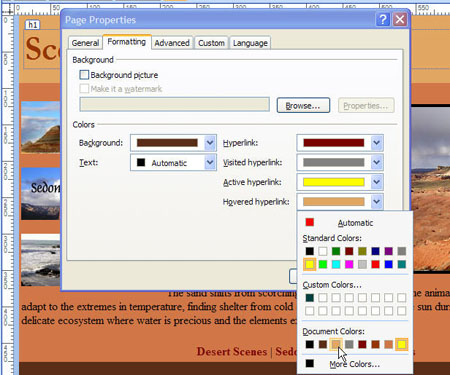
2. When you specify link colors in the Page Properties dialog, four new styles appear in the Manage Styles task pane.
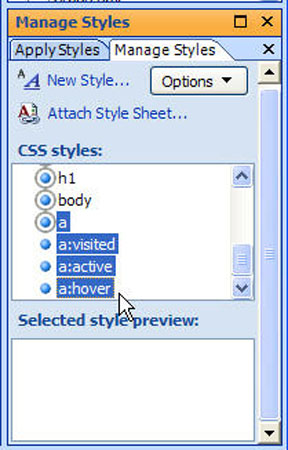
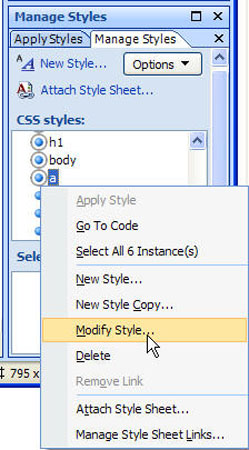
3. If you want to remove the underline style from your links, right click on the style named a (for the anchor tag) and choose Modify Style.
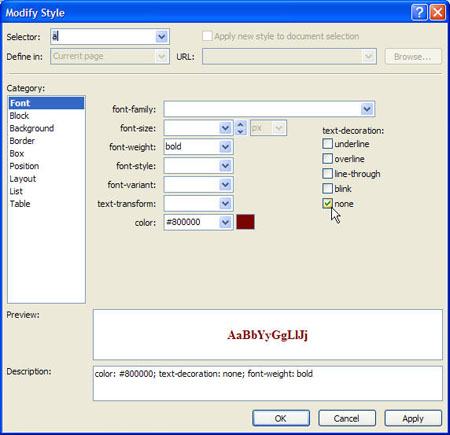
4. In the Modify Style dialog, set Text Decoration to None.
5. To view the effects of all of your new links styles, preview the page in a Web browser.
Don’t let the default HTML settings determine your design options, put CSS to work for you, and make your style your links to match your design.
This was so helpful. Thank you for taking the time to post it. 🙂
My developer is trying to convince me to move to .net from PHP.
I have always disliked the idea because of the costs. But he’s tryiong none
the less. I’ve been using WordPress on various websites for
about a year and am concerned about switching to another platform.
I have heard great things about blogengine.net.
Is there a way I can transfer all my wordpress posts into
it? Any help would be really appreciated!
I would never recommend you leave WordPress unless your site got so big or you needed a highly custom solution. nearly 20% of all of the websites on the Internet are now built with WordPress.
In my experience, if a developer is trying to get you to change for reasons that aren’t clear to you, then it’s probably because the developer prefers the other platform. If you love your developer and he wants to use .NET then that might be the best solution.
If you prefer PHP, you may need a different developer…