
Web Design Training courses, videos & tutorials at DigitalFamily.com
Web design & Internet trends
books, videos, training & consulting
  • Home
  • Store
    • Web Design Books
    • Dreamweaver Videos
    • Expression Web Videos
    • Products
    • Shopping Cart
    • Order Status
  • Consulting Services
  • Web Tutorials
    • Web Design 101
    • Mobile and Responsive Web Design
    • Social Media
    • Online Reputation
    • Dreamweaver
    • Expression Web
    • Cascading Style Sheets
    • WordPress
  • Dreamweaver
    • CS6 Tutorials
    • CS5 Tutorials
    • CS4 Tutorials
    • CS3 Tutorials
  • FAQ
    • Dreamweaver
    • CSS
    • Graphics
    • WordPress
    • Ask the Author
  • About Us
    • About DigitalFamily.com
    • About Janine Warner
  • Contact
Search the site...
Home» Tutorials » Dreamweaver » How to set up a website in Dreamweaver CS5

How to set up a website in Dreamweaver CS5

Posted by Janine Warner - September 11, 2012 - Dreamweaver, Dreamweaver CS5, Tutorials, Video
0

Before you do anything in Dreamweaver on a new site or on a site you’re opening for the first time in Dreamweaver, make sure you complete the Site Setup process.

Once you’ve set up a web site, Dreamweaver displays all of the related files in the Files panel. Setting up a site also makes it possible for Dreamweaver to keep track of  all of the files, links, and image references.

The setup process is streamlined in Dreamweaver CS5 so there are only two quick steps — and that makes this tutorial short and sweet if you just want to get going quickly.

In this video tutorial (and the written instructions that follow), you’ll find tips on how to get started, how to set up an images folder, and how to configure a web server, as well.

Video Tutorial: How to set up a website in Dreamweaver CS5

Step 1. The New, Simpler, Site Setup Process in Dreamweaver Cs5

In version CS5, Adobe streamlined the Site Setup process. When you first start working on any new or existing site in Dreamweaver, it’s important to begin by setting up the site and identifying your main web site folder. The new Site Setup dialog requires just two settings to get started. First, give your site a name (any name will do, it’s just for your reference). Next, click the small folder icon to the right of the Local Site Folder field and select the folder on your hard drive where you will store all of the files and subfolders in your site. Click Save and you’re done.
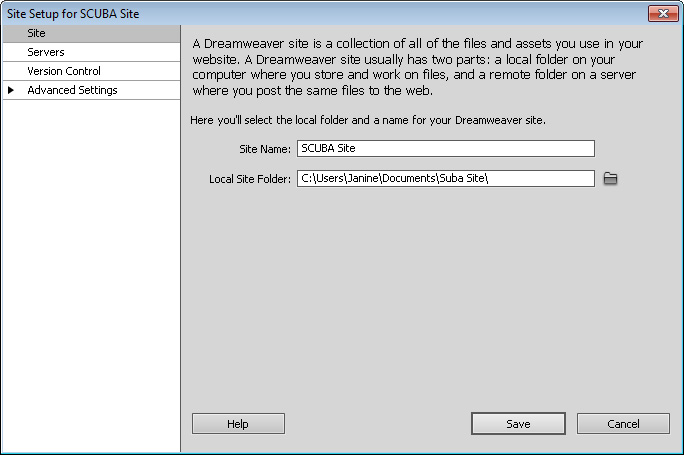
Simpler Site Set Up

Step 2. Setting Up Multiple Web Servers (Local and Remote)

Use the tabs on the left of the new Site Setup dialog to access more advanced features and FTP settings. The new dialog now makes it possible to set up multiple servers for any site, a great way to manage both a testing server and a live server for the same Web site. Note that you need to click the small plus sign at the bottom of the server category window to open the FTP settings dialog.
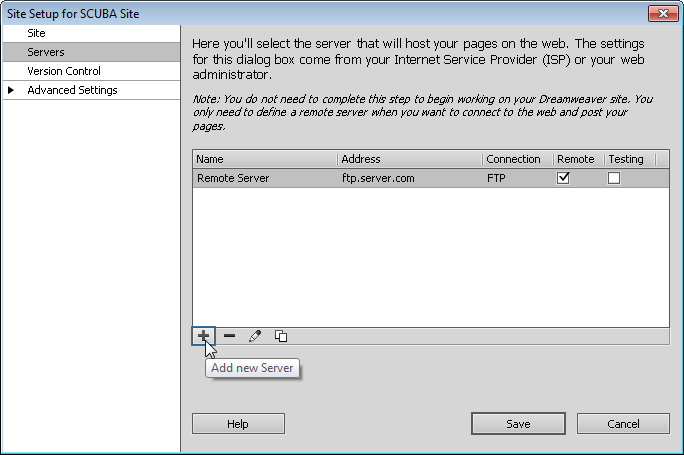
Setting Up Multiple Web Servers (Local and Remote)

3. Using Advanced Server Options

When you set up the ftp features in Dreamweaver, you can use the Advanced tab and the More Options menu to access additional settings and features for interacting with any Web server.

Advanced Server Options


4. Set Up an Images Folder and Configure Advanced Options

You’ll find many other options in the Site Setup dialog when you click the Advanced tab, including the setting for an images folder in your local site folder. If you identify an images folder, and then insert an image into a page that is outside your root folder, Dreamweaver will copy the image into the folder you identify in this field.

You can also use the Advanced options to specify a folder for Spry assets, set up version control, cloaking, Contribute, and other advanced features.

dwcs5

Leave a Reply Cancel reply

Your email address will not be published. Required fields are marked *

You may use these HTML tags and attributes: <a href="" title=""> <abbr title=""> <acronym title=""> <b> <blockquote cite=""> <cite> <code> <del datetime=""> <em> <i> <q cite=""> <strike> <strong>

Share with your friends

Dreamweaver Tutorials

  • Creating websites with Dreamweaver HTML templates (.dwt)
  • What’s the difference between a website & blog?
  • Tracking web traffic: Google Analytics vs other traffic counters
  • Review: What’s the Best Way to Add eCommerce Or a Shopping Cart to a Website?
  • How to Test a Website in Different Browsers: Internet Explorer, Firefox, Safari, Chrome

Popular books & videos

  • Dreamweaver CS6 Video

    DW-Video-250
    Designing for Multiple Screens with Fluid Grid Layouts
    Discover how to create web designs that look great on large and small screens. From smartphones to tablets to desktops, the new Fluid Grid Layout in version CS6 makes it easier than ever to set up media queries and design websites with HTML5 and CSS3. More Info »
    $49.99$39.99

    View Cart / Checkout
  • Dreamweaver CS5 Part 3: The New Features

    Dreamweaver-CS5-whats-new
    Training Video DVD
    Upgrading to CS5? Get just the training you need when you upgrade. This video covers the hottest new additions to Dreamweaver's toolset with a focus on how to put these great new features to work right away. More Info »
    $24.99

    View Cart / Checkout
  • Dreamweaver CS5 Crash Course

    Dreamweaver CS5 Crash Course Part 1
    Dreamweaver video DVD
    Dip into web design and learn Dreamweaver fast with this engaging video. More Info »
    $24.99

    View Cart / Checkout
  • Dreamweaver CS4 Essentials

    Dreamweaver CS4 Training Video
    Training Video DVD
    Janine's delightful sense of humor (and The Chocolate Game website) make learning web design with Dreamweaver CS4 more fun in this comprehensive 5-hour course. More Info »
    $39.99

    View Cart / Checkout
  • Dreamweaver CS3 Essentials

    Dreamweaver CS3 Training Video
    By Janine Warner Created with TotalTraining Janine’s patience and delightful sense of humor make learning web design with Dreamweaver CS3 fun. Learn everything you need to build websites with Dreamweaver in this comprehensive 8-hour course. You’ll get up to speed fast with the basics of setting up a site and creating your first web pages, More Info »
    $24.99

    View Cart / Checkout
© 2001 - 2013 All rights reserved. DigitalFamiliy.com was created by Janine Warner | Terms & Conditions of Use | Privacy Policy
  • Home
  • Store
  • Consulting Services
  • Web Tutorials
  • Dreamweaver
  • FAQ
  • About Us
  • Contact