
Web Design Training courses, videos & tutorials at DigitalFamily.com
Web design & Internet trends
books, videos, training & consulting
  • Home
  • Store
    • Web Design Books
    • Dreamweaver Videos
    • Expression Web Videos
    • Products
    • Shopping Cart
    • Order Status
  • Consulting Services
  • Web Tutorials
    • Web Design 101
    • Mobile and Responsive Web Design
    • Social Media
    • Online Reputation
    • Dreamweaver
    • Expression Web
    • Cascading Style Sheets
    • WordPress
  • Dreamweaver
    • CS6 Tutorials
    • CS5 Tutorials
    • CS4 Tutorials
    • CS3 Tutorials
  • FAQ
    • Dreamweaver
    • CSS
    • Graphics
    • WordPress
    • Ask the Author
  • About Us
    • About DigitalFamily.com
    • About Janine Warner
  • Contact
Search the site...
Home» Tutorials » Expression Web » Create a Rollover with the Swap Image Behavior

Create a Rollover with the Swap Image Behavior

Posted by Janine Warner - September 8, 2012 - Expression Web, Tutorials
0

You can use the Swap Image behavior to create rollover images for links and navigation elements, and you can use it to add a little surprise to your pages anywhere in your web site by setting one image to swap with another image.

Follow these instructions to create an image rollover effect in Expression Web:

1. Begin by inserting the first image you want to display in your rollover into your page just as you would insert any other image. For example, you can choose Insert > Picture > From File and browse to find the image you want to insert.

Add any formatting or alignment options you want, such as the .image-right class style that is applied to the image in this example to align it to the right side of the page. Note: You’ll find instructions for the creating and applying an image-right style in Tutorial 5.)

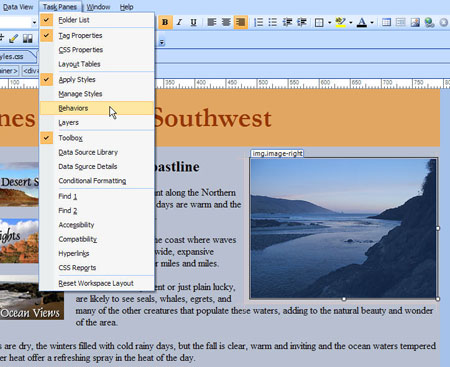
Once you have the image the way you want it, click to select the image and open the Behaviors task pane by choosing Task Panes | Behaviors.
Insert Figure EW Tutorial 7-1.jpg


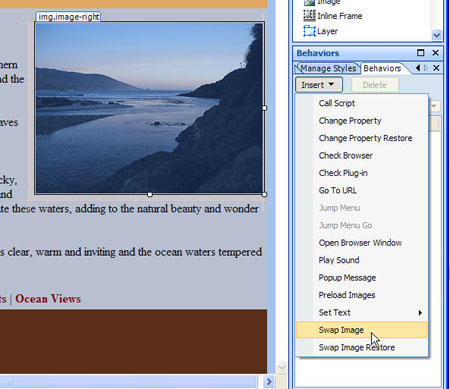
2. Click on the arrow to open the pull-down list and choose Swap Image.
Insert Figure EW Tutorial 7-2.jpg


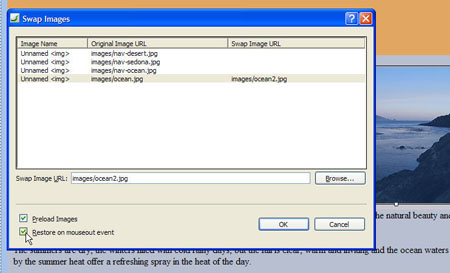
3. In the Swap Image dialog, use the Browse button to find the image you want to replace, or swap, with the first image, select it and click OK.

Make sure to check the Restore on Mouseout event box. This will replace the second image with the first when the user moves their cursor off the image.
Insert Figure EW Tutorial 7-3.jpg


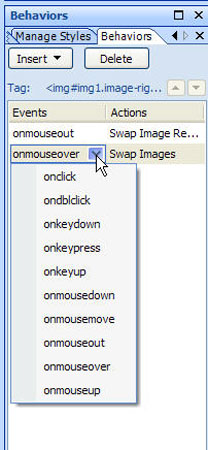
4. Click OK and the rollover image is automatically set using Javascript to control the event and action. Note that you can change the event, which in this case is set to onmouseover, by clicking on the arrow in the Behaviors task pane next to the event and choosing another option from the pull-down list.
Insert Figure EW Tutorial 7-4.jpg
The swap image behavior makes it easy to create cool rollover effects anywhere in your site and it can be used to swap more than one image simultaneously to create even more complex image effects.

expression-web

Leave a Reply Cancel reply

Your email address will not be published. Required fields are marked *

You may use these HTML tags and attributes: <a href="" title=""> <abbr title=""> <acronym title=""> <b> <blockquote cite=""> <cite> <code> <del datetime=""> <em> <i> <q cite=""> <strike> <strong>

Share with your friends

Expression Web Tutorials

  • How to Add a Favicon Image to Your Web Site
  • Test Your CSS Before You Publish with Expression Web
  • How to Test Web Site Accessibility with Microsoft Expression Web
  • Make Global Updates with Dynamic Web Templates in Expression Web
  • Add Meta Keywords and Descriptions for Search Engine Optimization

Expression Web Products

  • Microsoft Expression Web Essentials Training Video for versions 2 & 3

    expressionweb2_ess-lg
    Training Video
    Janine's best-selling Expression Web training video starts with the basics and takes you through more advanced features, including in CSS, templates, and more. You'll get a solid introduction to web design, as you learn Microsoft Expression Web, and you're sure to love Janine's patient (and fun!) teaching style. This video works for both Expression We 2 and 3. More Info »
    $49.99$25.00

    View Cart / Checkout
© 2001 - 2013 All rights reserved. DigitalFamiliy.com was created by Janine Warner | Terms & Conditions of Use | Privacy Policy
  • Home
  • Store
  • Consulting Services
  • Web Tutorials
  • Dreamweaver
  • FAQ
  • About Us
  • Contact