
Web Design Training courses, videos & tutorials at DigitalFamily.com
Web design & Internet trends
books, videos, training & consulting
  • Home
  • Store
    • Web Design Books
    • Dreamweaver Videos
    • Expression Web Videos
    • Products
    • Shopping Cart
    • Order Status
  • Consulting Services
  • Web Tutorials
    • Web Design 101
    • Mobile and Responsive Web Design
    • Social Media
    • Online Reputation
    • Dreamweaver
    • Expression Web
    • Cascading Style Sheets
    • WordPress
  • Dreamweaver
    • CS6 Tutorials
    • CS5 Tutorials
    • CS4 Tutorials
    • CS3 Tutorials
  • FAQ
    • Dreamweaver
    • CSS
    • Graphics
    • WordPress
    • Ask the Author
  • About Us
    • About DigitalFamily.com
    • About Janine Warner
  • Contact
Search the site...
Home» Tutorials » CSS » Add a Slider to your Web Pages with the jQuery PowerSlider in Dreamweaver

Add a Slider to your Web Pages with the jQuery PowerSlider in Dreamweaver

Posted by Janine Warner - August 25, 2012 - CSS, Dreamweaver, Dreamweaver CS4, Dreamweaver CS5, Dreamweaver CS6, Tutorials
0

Seems all the cool sites have a big, rotating box at the top of the front page.

If you want to showcase a few featured items in a rotating slider (the way I’ve done on the front page of this website), the PowerSlider is going to make your day — and you don’t even have to learn jQuery.

This Dreamweaver Extension makes it easy to get JQuery, CSS, and HTML to play together — and you can customize the colors, size, and many other settings. Learn more about the jQuery PowerSlider.

You can download the PowerSlider and add it to Dreamweaver, making it possible to use all of Dreamweaver’s great CSS features to edit the colors, styles, and anything else you want to change.

PowerSliderStep 1. Visit the Extend Studio site todownload PowerSlider.

Step 2. Add the PowerSlider extension to Dreamweaver
To add any new extension to Dreamweaver, you need the Adobe Extension Manager. 

Step 3.  Launch Extension Manager and use it to install PowerSlider, as you’d install any Dreamweaver extension. The process is mostly automatic, the Extension Manager makes sure PowerSlider is installed properly and lets you know when it’s done.

Step 4. You also need the latest version of the Design Editor AIR Application. The PowerSlider uses an AIR application for image editing. You need to install it for the PowerSlider extension to work. To install Air, look for the .air installer file inside the extension folder.

Step 5. Find the PowerSlider Extension In Dreamweaver
When you install the PowerSlider into Dreamweaver with the Adobe Extension Manager, a new category for the PowerSlider is added to the Dreamweaver Insert bar.
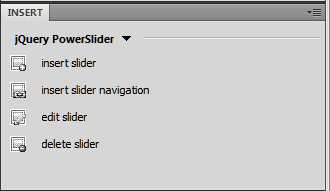
PowerSlider Insert Bar

Step 6. Open the PowerSlider Insert bar
To use the  jQuery Power Slider, you need to first open the PowerSlider window, by choosing it from the Insert bar drop-down menu in Dreamweaver. You can do this from the menu, by choosing  Window >> Insert Bar.

Step 7. Insert a slider into a page in Dreamweaver.

You can add a slider to a new or existing page. Just place your cursor where you want the slider and click on the insert slider button in the jQuery Power Slider Insert bar (shown above).

Step 8. Choose the design and options you want.

The PowerSlider extension features many great tools to make it easy to change the size, colors, and other design elements of your powerslider.
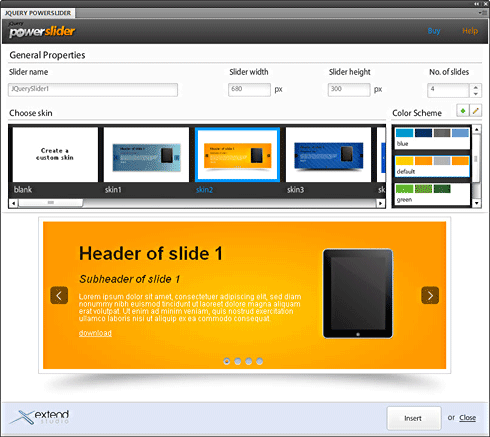
PowerSlider


Step 9. Add your own content.

You can click to select the text you want to change, insert images, and even move the elements around in each slider window.

Use the small arrows at the top of the slider to change from one slide to the next as you add your own content.

Want to add PowerSlider to your web site?

Get the jQuery PowerSlider and other great Dreamweaver extensions from extendstudio

dwcs4, dwcs5, dwcs6, extensions

Leave a Reply Cancel reply

Your email address will not be published. Required fields are marked *

You may use these HTML tags and attributes: <a href="" title=""> <abbr title=""> <acronym title=""> <b> <blockquote cite=""> <cite> <code> <del datetime=""> <em> <i> <q cite=""> <strike> <strong>

Share with your friends

Dreamweaver Tutorials

  • Creating websites with Dreamweaver HTML templates (.dwt)
  • What’s the difference between a website & blog?
  • 6 Reasons to Upgrade to Dreamweaver CS6
  • Tracking web traffic: Google Analytics vs other traffic counters
  • Creating Responsive Designs with Dreamweaver CS6 Fluid Grid Layout

Popular books & videos

  • Dreamweaver CS6 Video

    DW-Video-250
    Designing for Multiple Screens with Fluid Grid Layouts
    Discover how to create web designs that look great on large and small screens. From smartphones to tablets to desktops, the new Fluid Grid Layout in version CS6 makes it easier than ever to set up media queries and design websites with HTML5 and CSS3. More Info »
    $49.99$39.99

    View Cart / Checkout
  • Dreamweaver CS5 Part 3: The New Features

    Dreamweaver-CS5-whats-new
    Training Video DVD
    Upgrading to CS5? Get just the training you need when you upgrade. This video covers the hottest new additions to Dreamweaver's toolset with a focus on how to put these great new features to work right away. More Info »
    $24.99

    View Cart / Checkout
  • Dreamweaver CS5 Crash Course

    Dreamweaver CS5 Crash Course Part 1
    Dreamweaver video DVD
    Dip into web design and learn Dreamweaver fast with this engaging video. More Info »
    $24.99

    View Cart / Checkout
  • Dreamweaver CS4 Essentials

    Dreamweaver CS4 Training Video
    Training Video DVD
    Janine's delightful sense of humor (and The Chocolate Game website) make learning web design with Dreamweaver CS4 more fun in this comprehensive 5-hour course. More Info »
    $39.99

    View Cart / Checkout
  • Dreamweaver CS3 Essentials

    Dreamweaver CS3 Training Video
    By Janine Warner Created with TotalTraining Janine’s patience and delightful sense of humor make learning web design with Dreamweaver CS3 fun. Learn everything you need to build websites with Dreamweaver in this comprehensive 8-hour course. You’ll get up to speed fast with the basics of setting up a site and creating your first web pages, More Info »
    $24.99

    View Cart / Checkout
© 2001 - 2013 All rights reserved. DigitalFamiliy.com was created by Janine Warner | Terms & Conditions of Use | Privacy Policy
  • Home
  • Store
  • Consulting Services
  • Web Tutorials
  • Dreamweaver
  • FAQ
  • About Us
  • Contact